
One desk,
two
computers.
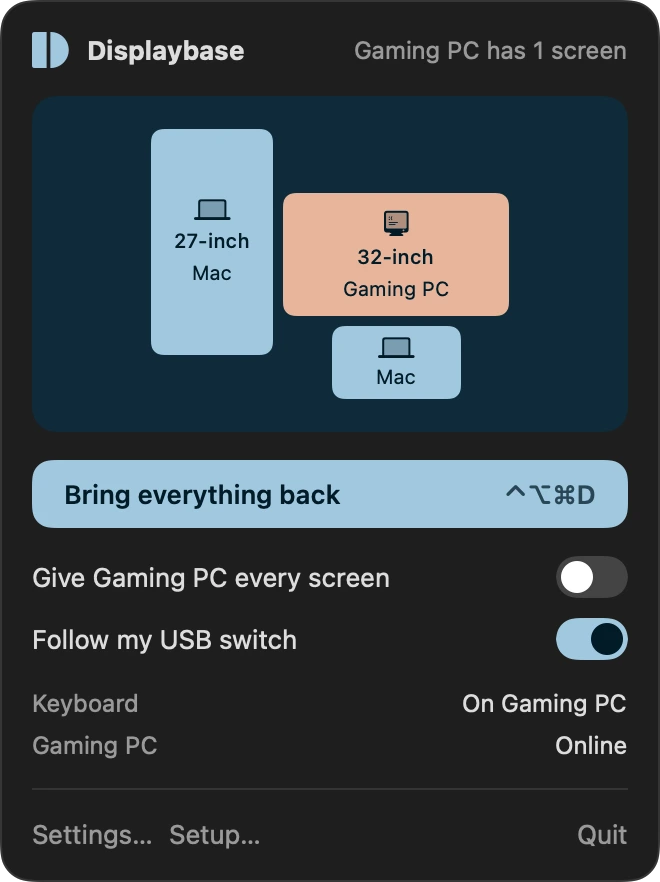
Press a button and your monitor moves to your PC. Press again and everything goes back.
Eight bytes move a screen.
Your monitor has been able to do this all along. Displaybase sends it one DDC/CI command, reads the input back, and tries up to four times before it believes the answer.
- 6EMonitor
- 51Mac
- 84Length
- 03Set
- 60Input
- 00High
- 0FLow
- D7Checksum
Same cables, different owner.
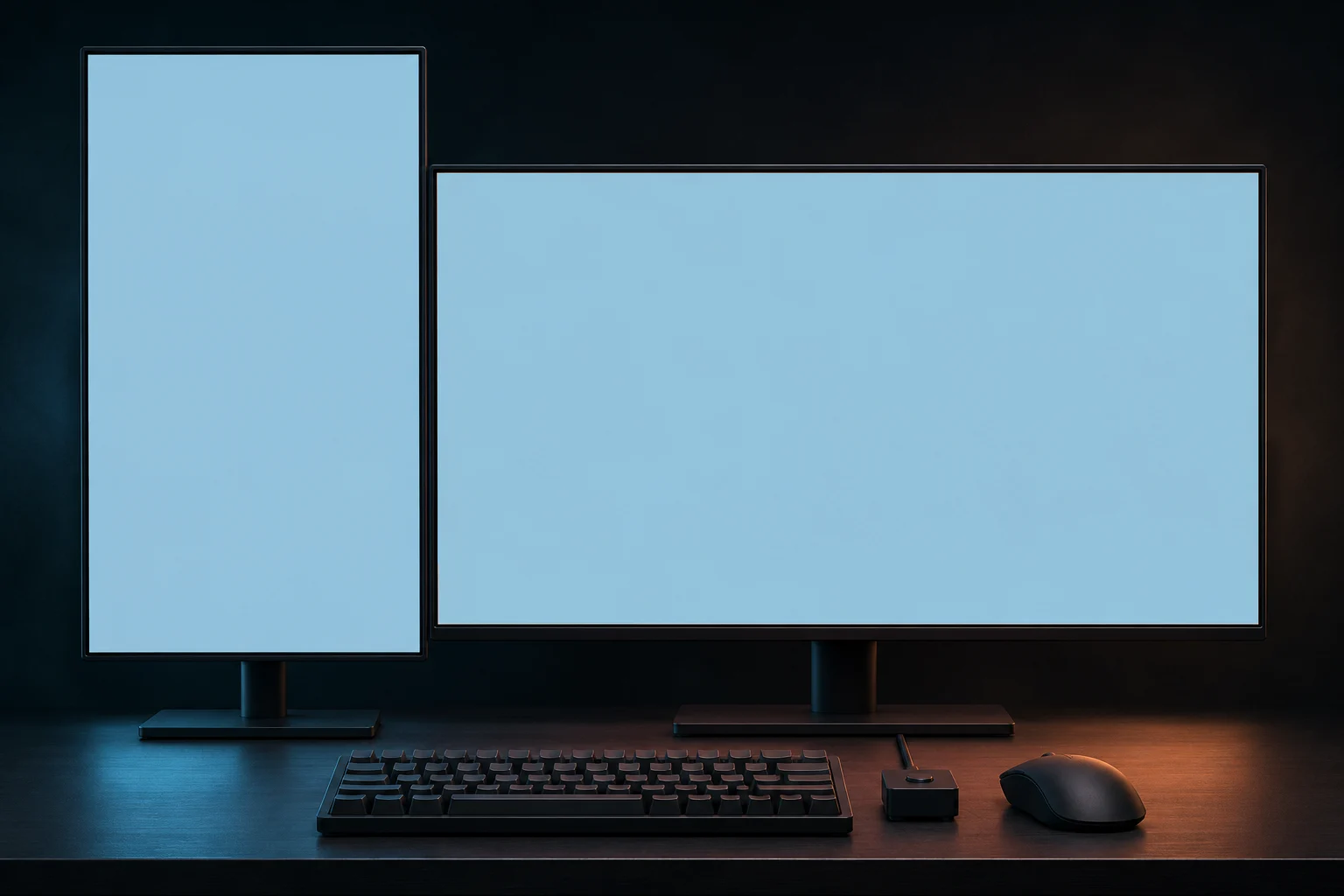
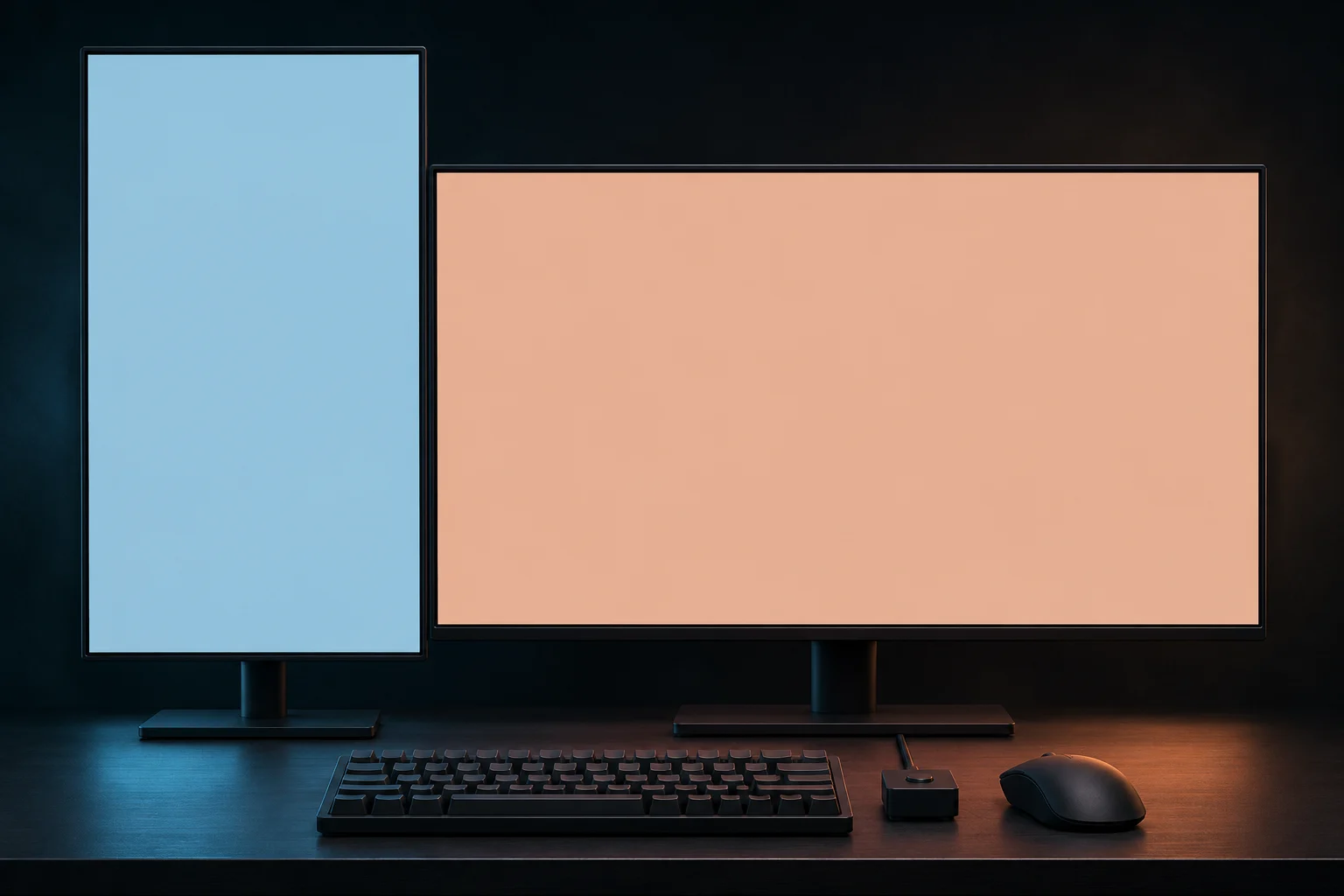
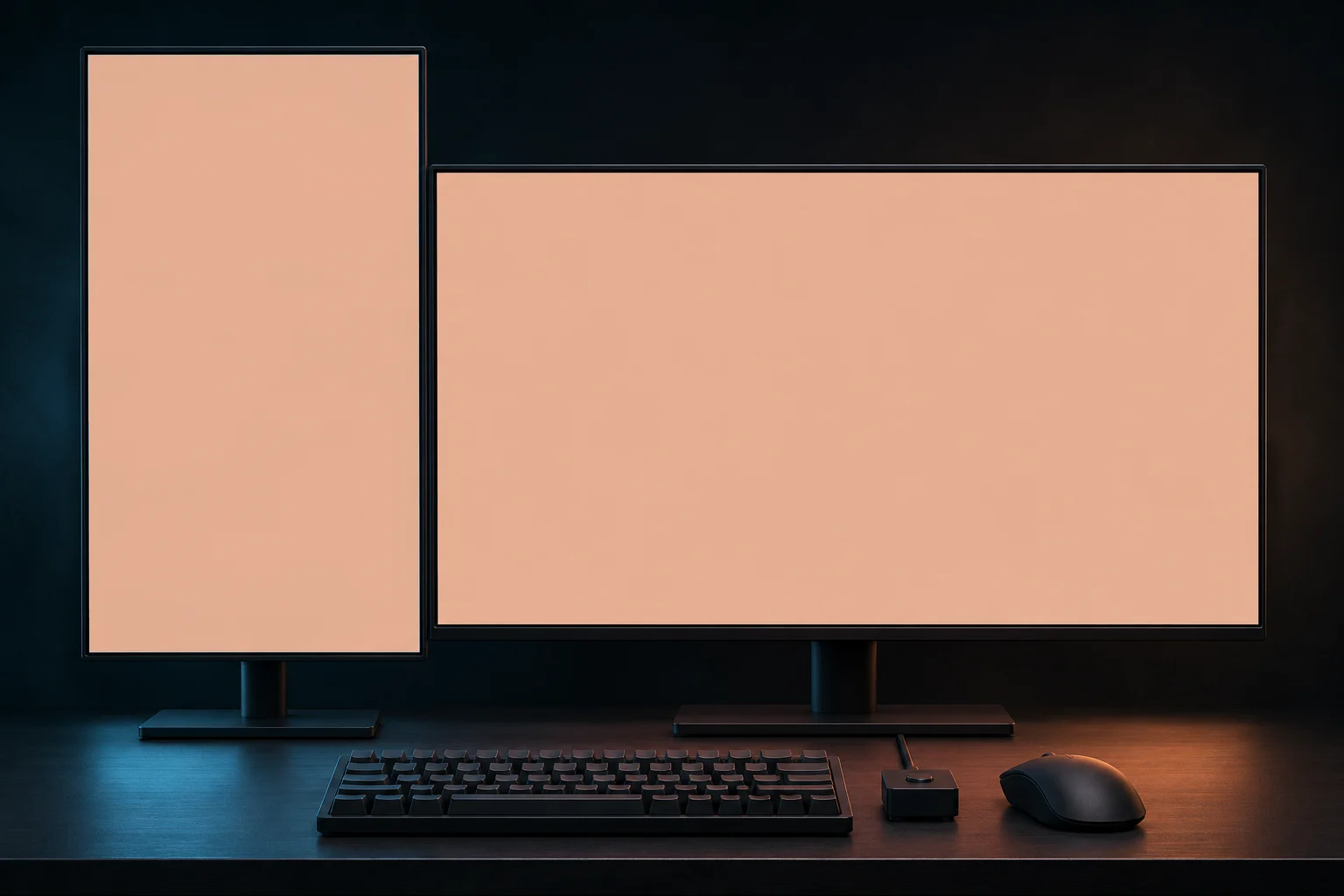
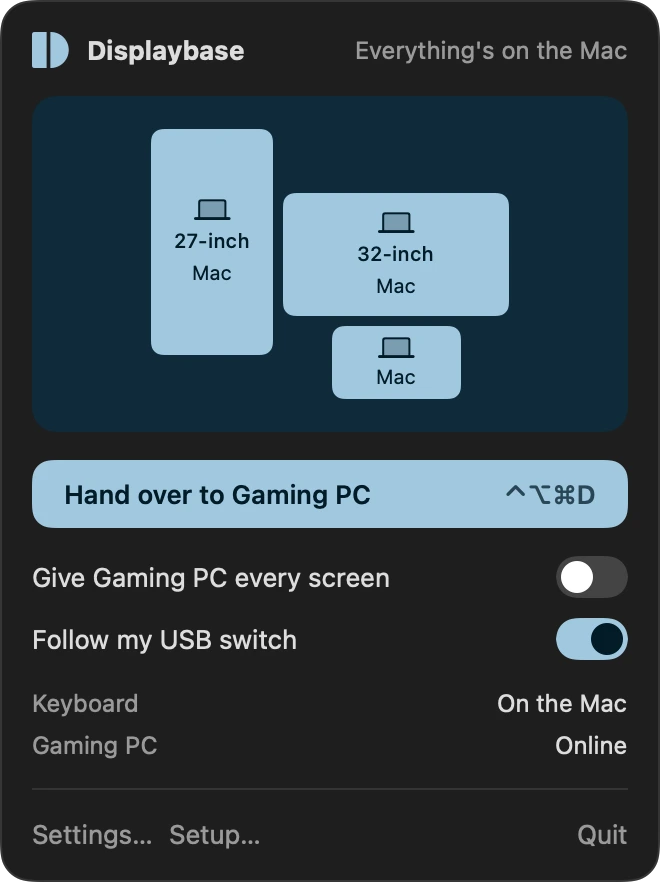
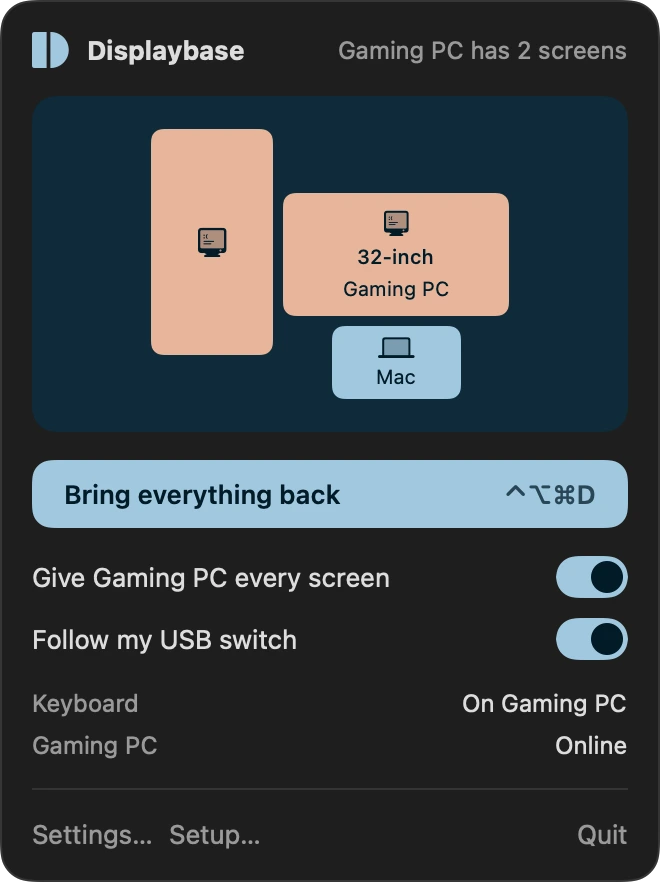
The PC takes the main screen
The Mac moves its menu bar and windows to the screen it keeps, so chat and music stay in view.
Nothing moved
the screens.
I work on a MacBook and play on a gaming PC. They share two monitors, and a USB switch moves my keyboard between them. The screens stayed put.
When a monitor did switch, macOS didn't know it was gone. Windows stayed on a screen I couldn't see, the layout reshuffled, and my portrait monitor came up sideways.
And if I needed the Mac for a second, I didn't want that to end my game.
So I wanted one press: the PC on the main screen, the Mac tucked onto the side one, and everything back where it was afterwards. That's why I built Displaybase.
Geeth, Rad Soft
One press, six system calls.
AXUIElementRemembers every window
Position, size and which screen it was on.
VCP 0x60Switches the input
Then reads it back, so a monitor that ignored the command doesn't take your screen away.
CGSConfigureDisplayEnabledTurns the screen off in macOS
Windows and the pointer can't wander onto it. It lasts for the session, so logging out always brings it back.
MPDisplayHolds the rotation
macOS brings a new set of screens up unrotated. A portrait screen stays portrait.
CGConfigureDisplayOriginMoves the menu bar
To the screen the Mac keeps.
IOUSBHostDeviceWatches the keyboard
When it moves back, you can have everything return, or only borrow the keyboard.
Setup shows you what each choice does.
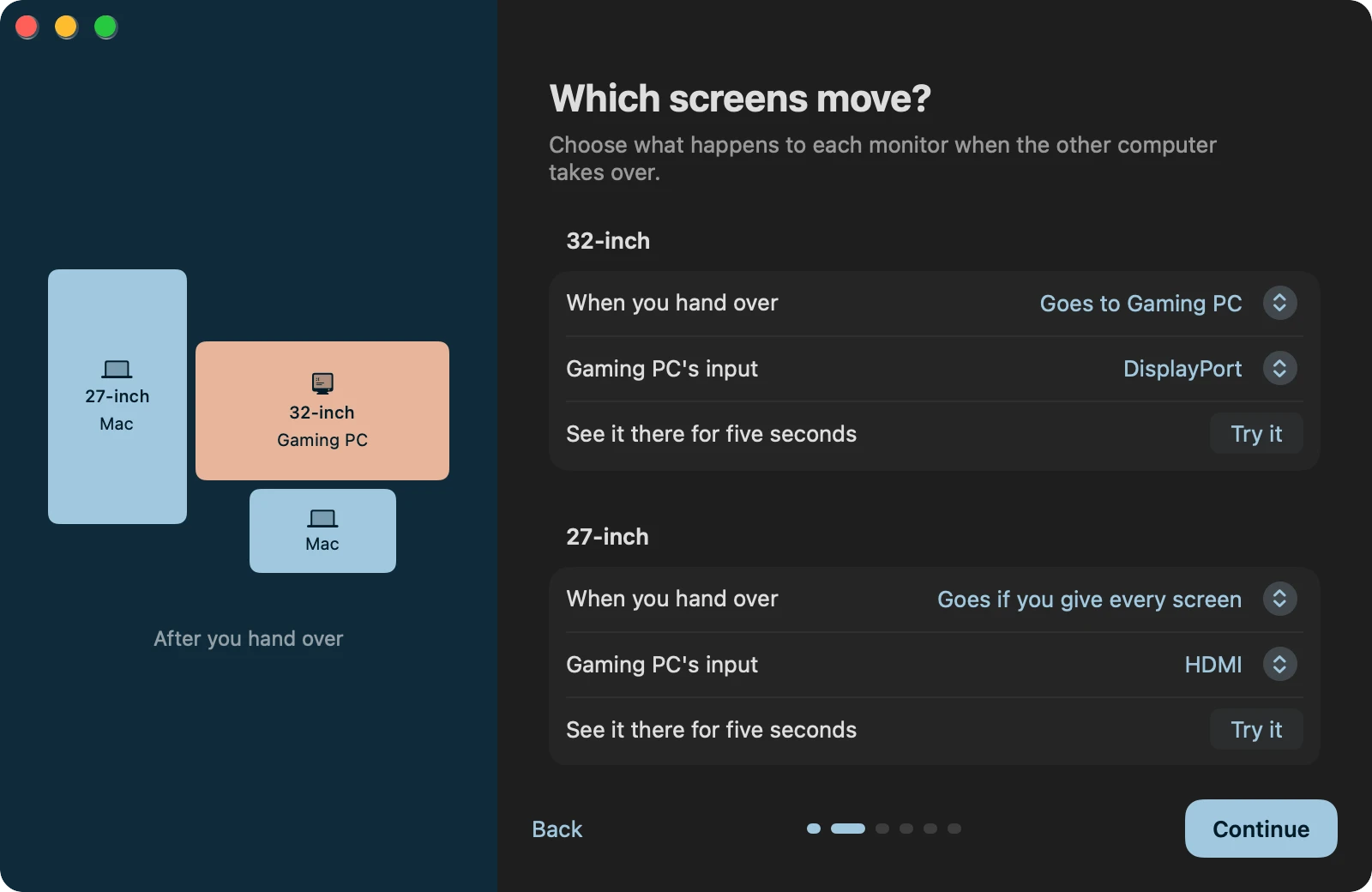
Pick what each screen does and watch the desk change beside it. You can try an input for five seconds before you keep it.
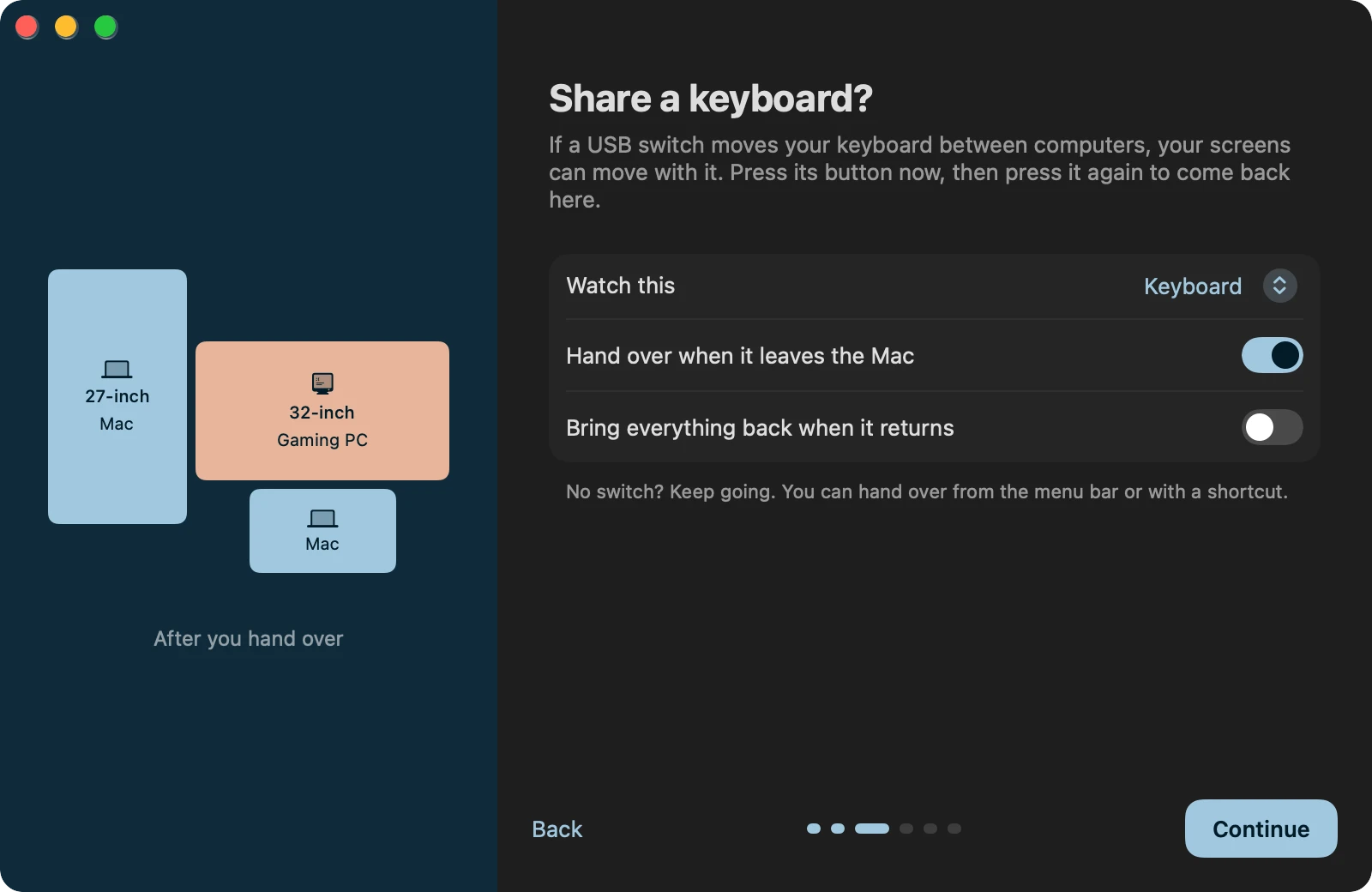
Press your switch's button
It watches what leaves and finds your keyboard by itself. No switch? Skip it.
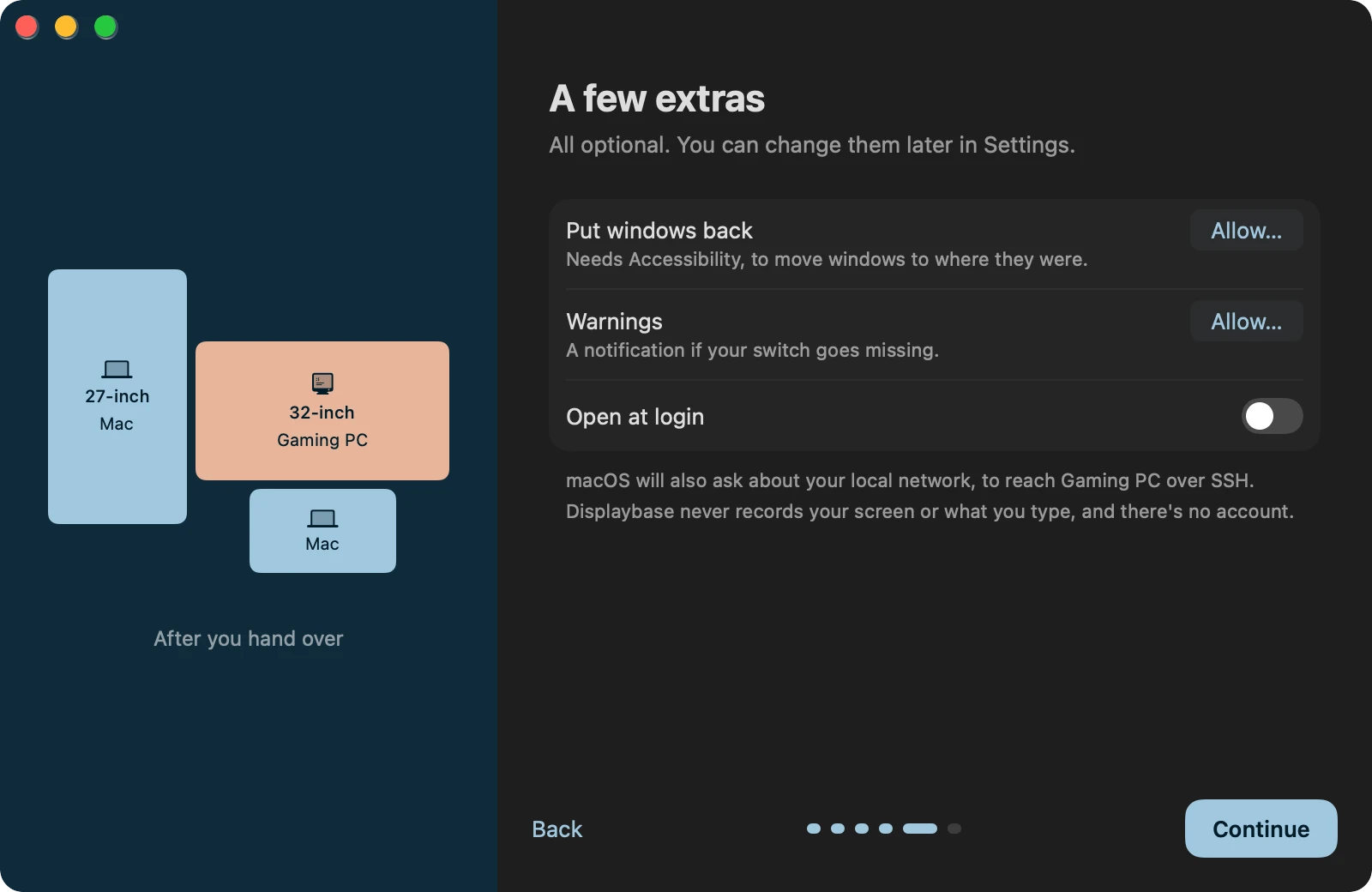
Allow what you want
Every permission is optional, and says what it's for before you click.
Four permissions. All yours to refuse.
It never records your screen or what you type. There's no account and no analytics. Apart from your own computer over SSH, the only thing it contacts is its update feed.
| macOS asks about | When | Why | If you say no |
|---|---|---|---|
| Accessibility | Optional | Puts your windows back where they were | Windows stay where macOS leaves them |
| Notifications | Optional | Tells you if your USB switch goes missing | The menu still shows it |
| Local network | Only with SSH | Checks on your other computer | Hand-overs go unconfirmed |
| Open at login | Optional | So it's there when you sit down | You open it yourself |
What you need
- A Mac with Apple silicon, on macOS 15 or later
- Monitors with DDC/CI turned on, plugged into both computers
- Any second computer: Windows, Linux or another Mac
- A USB switch and SSH, if you have them
It won't work with
- Intel Macs
- DisplayLink docks and adapters
- Some LG monitors, which ignore the standard input command
- Two matching monitors that report the same serial number
It's early, and so far it has been used on one desk. If your monitor works, or doesn't, please say so on GitHub.
Free and
open source.
Install it with Homebrew and it keeps itself up to date. Or read every line and build it yourself. MIT licensed.
Install with Homebrew
brew install --cask rad-soft/tap/displaybaseBuild it yourself
git clone https://github.com/Rad-Soft/displaybase
cd displaybase
brew install xcodegen
make install